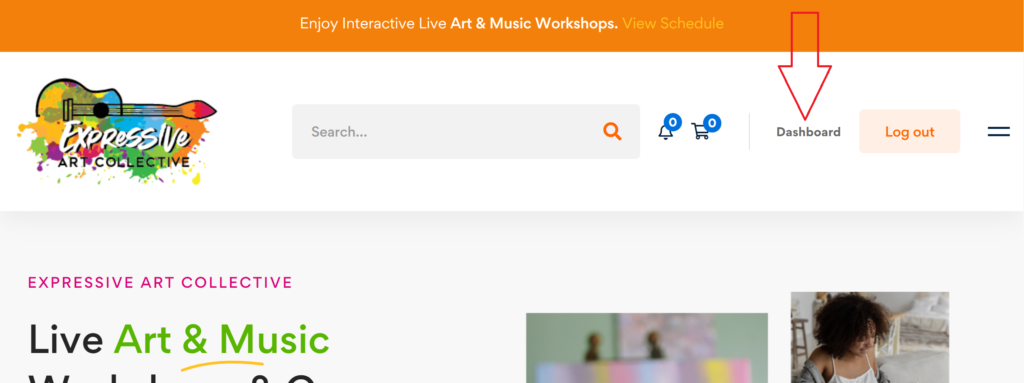
Add A New Course
Choose “Add a New Course” to start entering your course information.

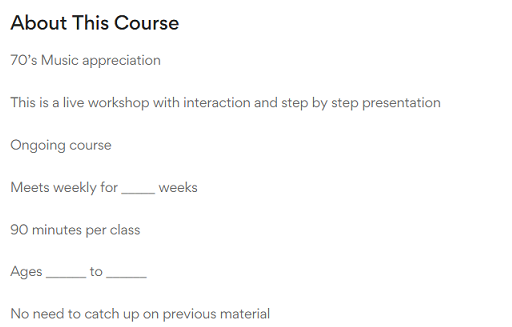
Course Title
This is the main identifier of the course. Make sure to keep this informative and concise.
Description
This is a brief description of the course and its contents. You can describe the topics included in the course, along with additional quizzes, assignments, and resources, in the course itself.
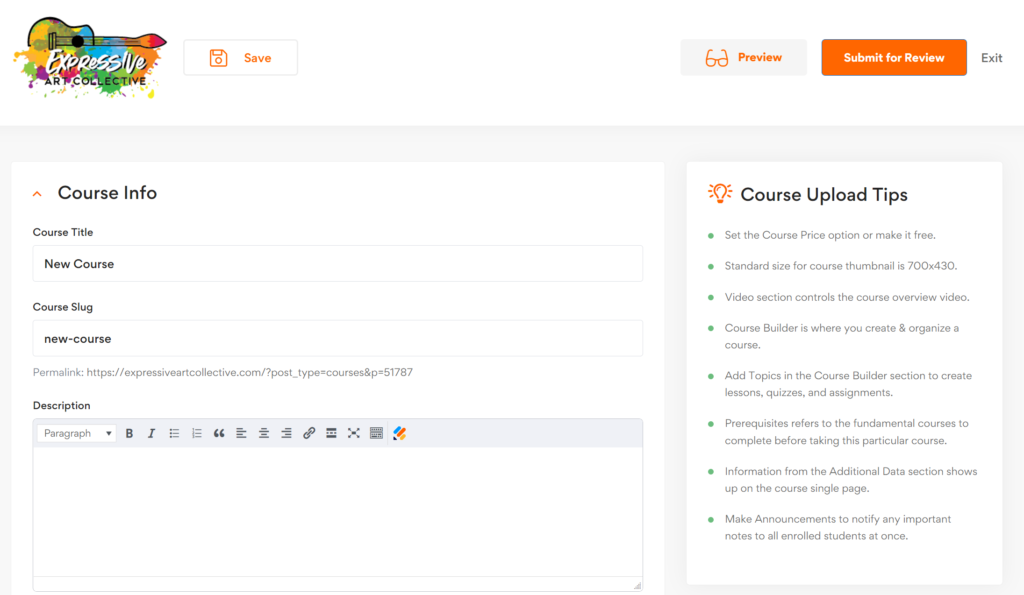
Below is a course description example
Course Settings
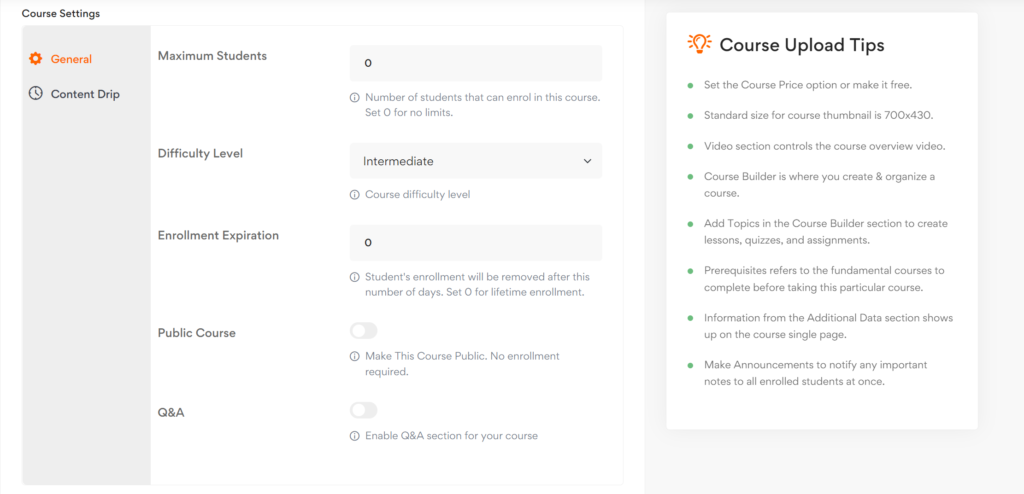
You can customize a few attributes of the course from these settings, such as course level, and maximum number of students.
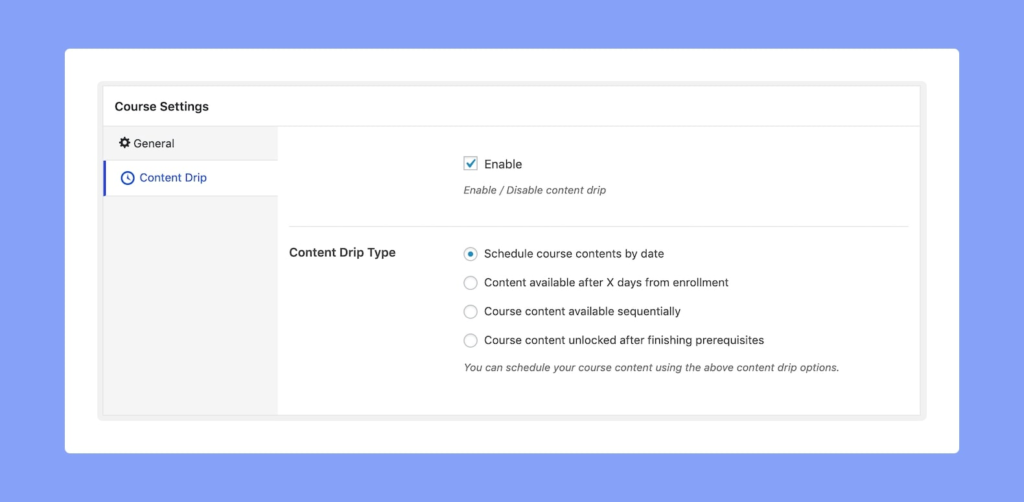
You can also set up content drip for this course if you have the Content Drip addon enabled (Pro Feature). The Content Drip add-on allows instructors to release lessons, quizzes, and assignments based on their selected criteria.
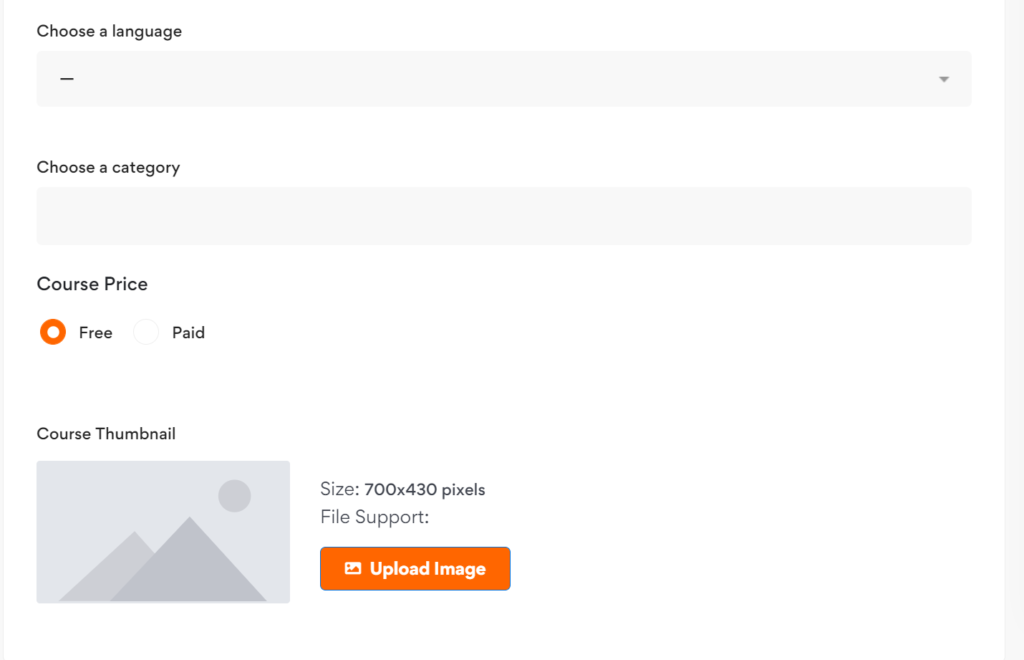
- Choose Language
- Choose a Category
- Course Price
- Course Thumbnail
Give your course an intro image and a visual appeal by adding a thumbnail image. This will show up on all required pages, such as course listings and so on. Please make sure to follow the guidelines for the best results.
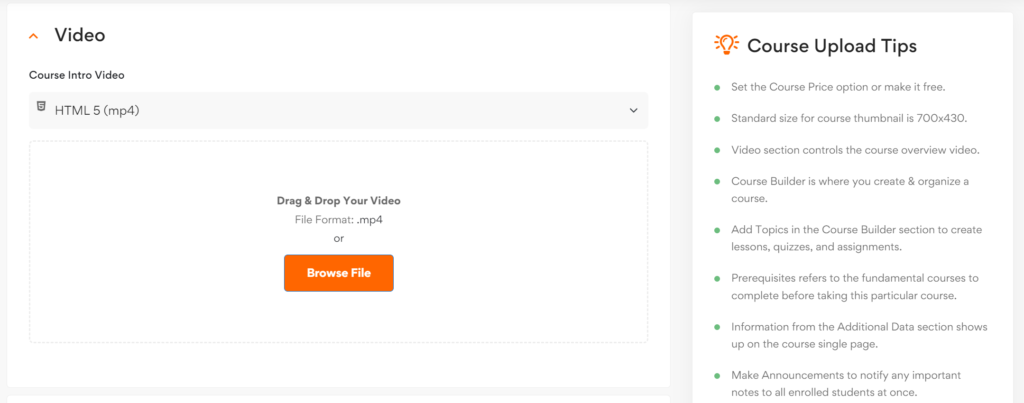
Course Intro Video
You can give an intro video that will show up on the course overview page. Much like the course description, potential students can get an overview of the course from this. You can select multiple sources such as:
- HTML5
- YouTube,
- Vimeo
- External URL
Course Builder
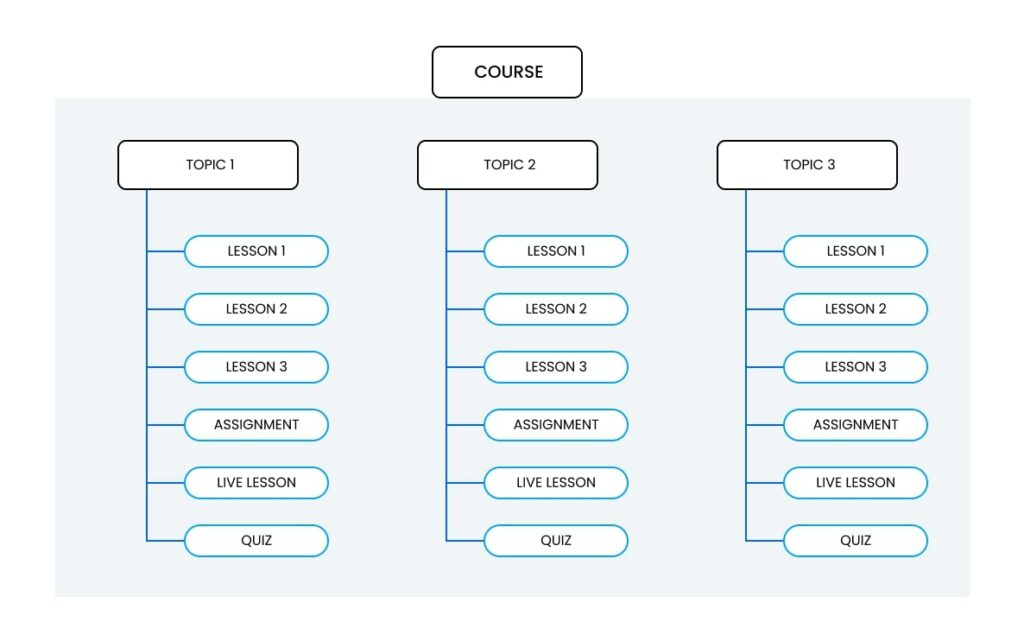
Course Builder: This is the bread and butter of the builder. The hierarchy of all the content is crucial for admins and instructors to know properly.
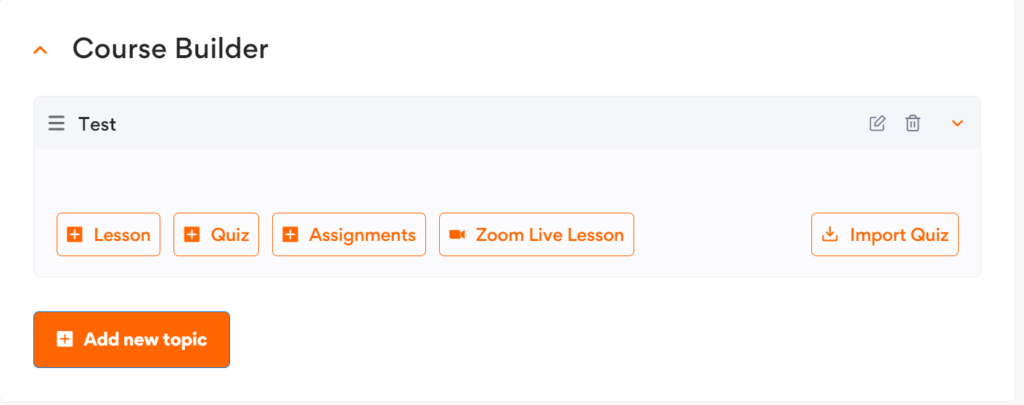
A Course will have Topics, and Topics will have Lessons and Quizzes. There can be multiple quizzes and lessons inside a single topic, but we highly recommend 2-5 lessons and 1 quiz for maximum effectiveness.
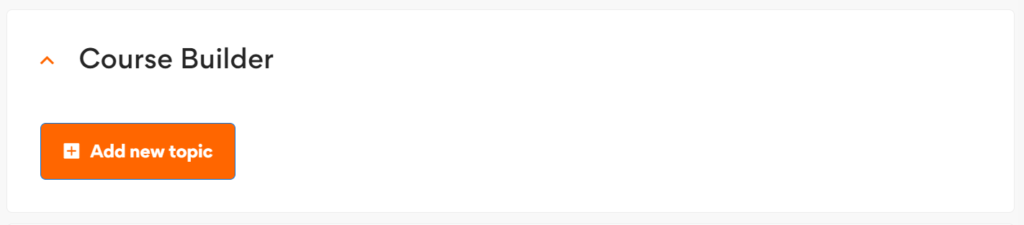
Add New Topic: This button will take you to the topic creation menu where you can give the topic a name and summary. There are tooltips to help you guide through the process. Once you’ve added the required information, you can start adding lessons and quizzes from the buttons below the corresponding topics.
Lesson: Each lesson has a title, description, and optional featured image.
- Video Source: Video source will allow you to add a source for the video lesson. Similar to the intro video, you can add external or internal sources. After adding the video, add the video playback time to the required field.
- Upload Attachments: You can also upload attachments from the courses to supply the necessary materials for this lesson. Once you’re done, you can click on Update Lesson to save and close this tab
Instructor
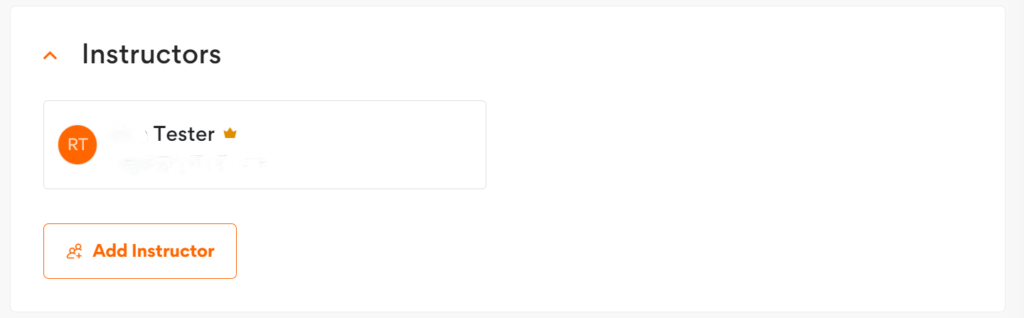
This section allows you to view the instructor names and also allows you to add more instructors to the course. If you have the Multi-Instructor addon (Pro Feature) enabled, you will be able to search for, and add more instructors to the same course. They can then edit, moderate, and add their own content to this course.
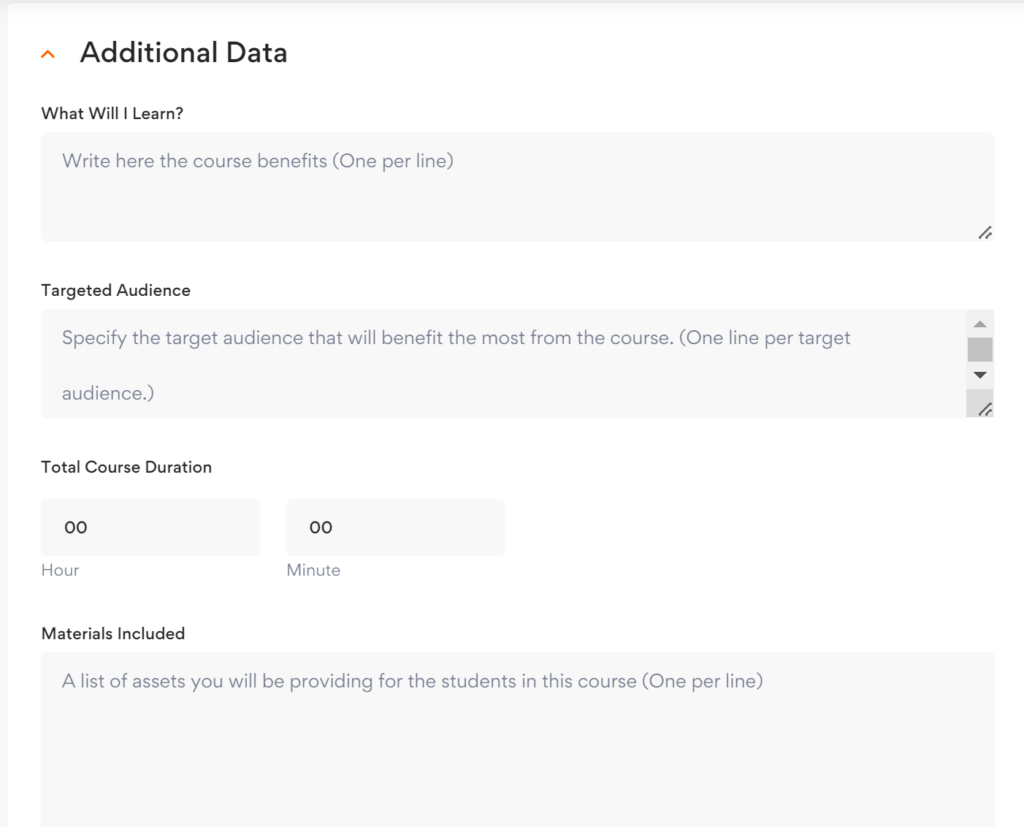
Additional Data
This data acts as informative data for potential students while also acting as marketing material for your course.
Target Audience
Specify the target audience that will benefit the most from the course. (One line per target audience)
Course Duration
Specify the overall duration of the course, i.e. how long it will take for a student to complete this course.
Materials Needed
A list of assets you or the instructors will be providing for the students in this course (One per line)
Create a Zoom Meeting
Admin will connect your Zoom account to your profile for you to connect

Course Attachments
Course attachments are resources such as practice files, example files, and other necessary files that you may have used in the course content. Students can download them if they choose to or need to, right from here.

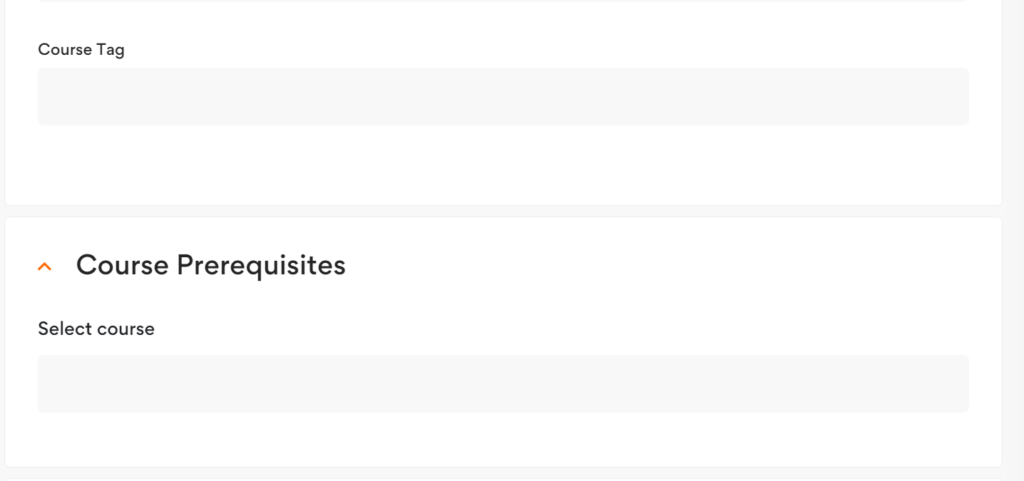
Course Tag
Course Prerequisites
Prerequisites are courses that you must finish to get access to this course. For example, if have 2 courses named Basics of Programming Languages and Advanced Programming Languages, then set the basics course as a prerequisite for the advanced course. This will make sure that the students complete the basic course before accessing the advanced course.
This will allow you to create a true and structured learning path for students, with different courses addressing different levels of students.
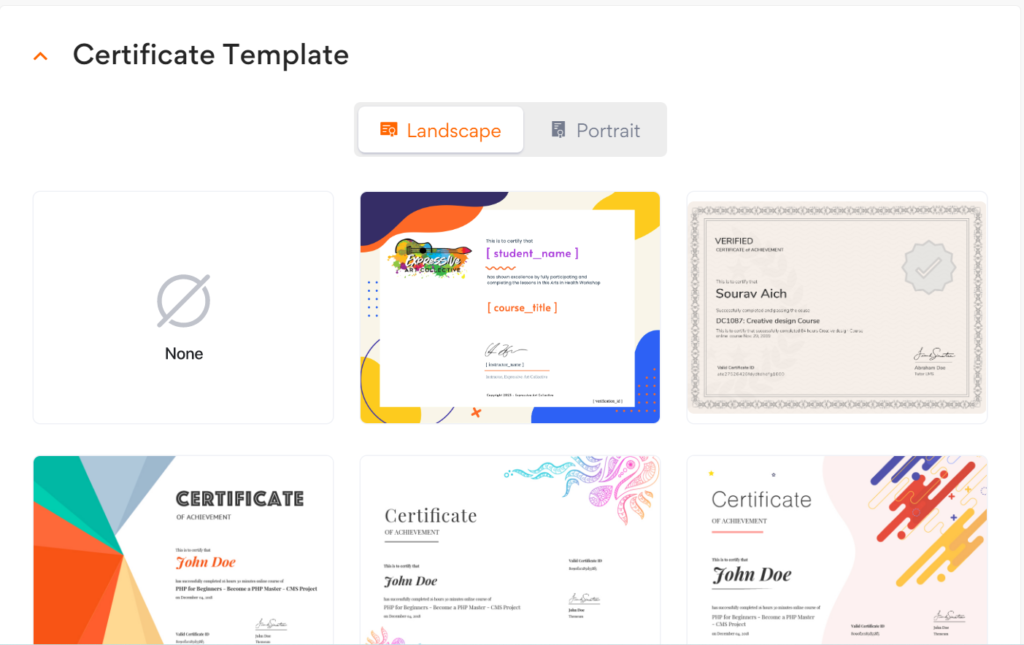
Course Certificate Templates
Attach a certificate for your course once it is completed.